

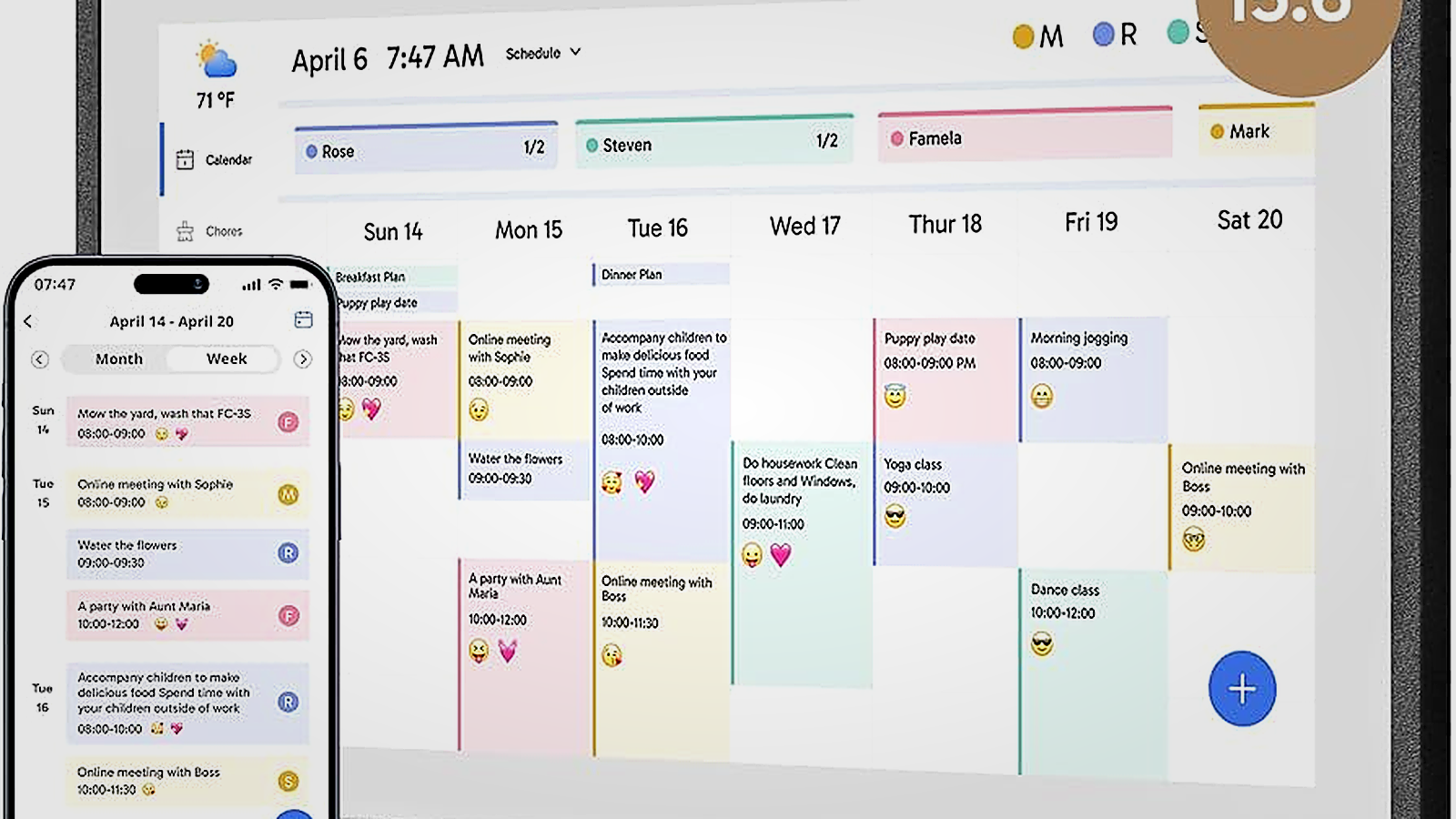
Stop Drowning in Sticky Notes and Forgotten Appointments
If you’re a parent constantly answering “What’s for dinner?” while simultaneously trying to remember whose turn it is to take out the trash, juggling three different calendar apps, and watching precious family photos disappear into the void of your phone’s camera roll, you’re not alone. The average household manages 47 different recurring tasks per week across multiple family members, and most of us are doing it with a chaotic mix of paper calendars, group texts, and hope.
Dragon Touch 15.6″ Digital Calendar promises to solve this exact chaos by putting your family’s entire schedule, chore system, meal planning, and photo memories on one gorgeous 15.6-inch touchscreen that lives on your kitchen wall. But does it actually deliver, or is this just another gadget that collects dust after two weeks?
After examining the real-world workflow, confirmed specifications, and honest limitations, here’s everything you need to know before buying.
What Dragon Touch 15.6″ Actually Is
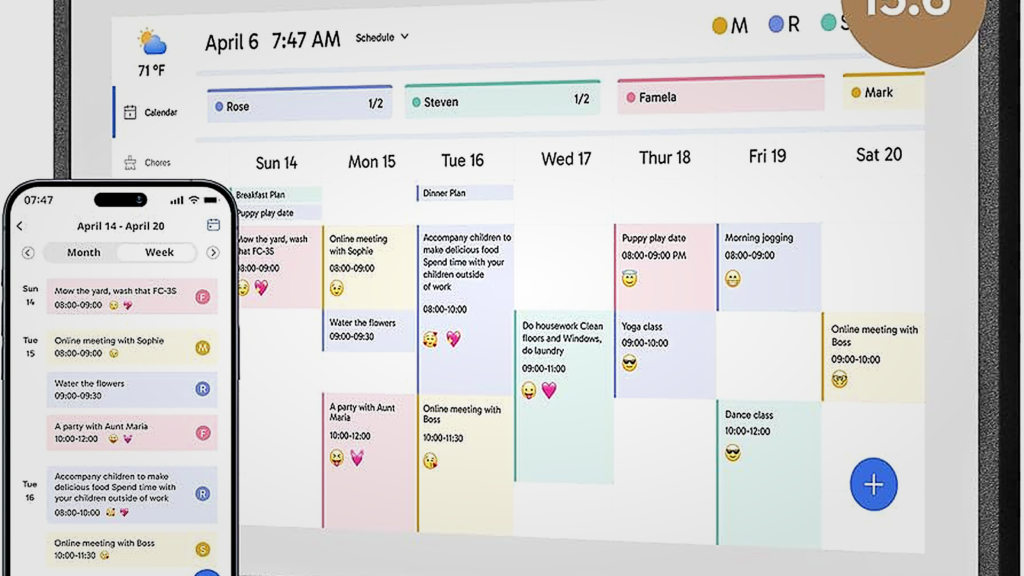
Dragon Touch 15.6″ is a dedicated smart family calendar device with a Full HD 1080p touchscreen (1920×1080 resolution) that combines household organization tools with digital picture frame functionality. Unlike repurposed tablets, this is purpose-built for family coordination.
Think of it as the household command center your refrigerator door wishes it could be. Instead of magnetic calendars, scribbled notes, and overlapping schedules, you get a clean digital interface that syncs with your existing calendars, manages chores, plans meals, tracks groceries, and displays your family photos when you’re not actively using the organizational features.
The device runs on dual-band WiFi (both 2.4GHz and 5GHz), comes with 32GB of built-in storage, and can be wall-mounted or placed on a countertop in either portrait or landscape orientation. You control everything through the eCalendar App on your phone, which means you can update schedules, assign chores, or add grocery items from anywhere.
The Real Problem Dragon Touch Solves
Most families don’t have a calendar problem. They have a coordination problem across multiple people using different systems.
Your spouse uses Google Calendar for work. You use Apple Calendar on your iPhone. The kids’ school sends event notifications through their own portal. Soccer practice gets texted to you. Piano lessons live in your email. Grandma calls to confirm Sunday dinner. Nothing syncs, nobody knows what everyone else is doing, and you’re the central processor trying to keep it all straight in your head.
Dragon Touch fixes this by becoming the single source of truth visible to everyone at home. When you sync your calendars through the eCalendar App, all those scattered events from Google Calendar, iOS Calendar, and other supported platforms merge into one unified view on the 15.6-inch screen. Your family walks past the kitchen, glances at the display, and instantly knows what’s happening today, this week, and beyond.
The chore chart feature tackles the second household pain point: nobody remembers whose responsibility anything is, and kids conveniently forget tasks until you nag them. Dragon Touch turns chores into an interactive system where tasks are assigned, visible, and trackable. Your daughter sees that taking out the trash is her job tonight, checks it off when complete, and the whole family sees it’s done.
The dinner planning and grocery list modules attack the “What’s for dinner?” question that somehow gets asked seven times a day despite you planning meals every Sunday. Plan your week’s dinners directly on the Dragon Touch screen, and when someone inevitably asks what’s for dinner at 4 PM, they walk to the kitchen and see the answer themselves. The grocery list auto-populates based on your meal plan, and you can add items throughout the week as you run out.
Key Specifications That Matter
Display: 15.6-inch diagonal screen with 1920×1080 Full HD resolution. This is large enough to read from across the room but compact enough to fit in most kitchens without dominating the wall. The touchscreen responds quickly to taps and swipes, making interaction natural even for kids.
Storage: 32GB internal storage handles thousands of photos for the digital frame mode, plus all your calendar data, chore assignments, and meal plans. You won’t run out of space unless you’re uploading hundreds of high-resolution videos.
Connectivity: Dual-band WiFi supporting both 2.4GHz and 5GHz networks. The 5GHz support is meaningful if you have a modern router, as it provides faster syncing and more stable connections in homes with lots of wireless devices competing for bandwidth.
Placement Flexibility: Works in portrait or landscape orientation, wall-mounted using included hardware or sitting on a countertop with the stand. Portrait orientation fits narrow wall spaces and maximizes vertical calendar viewing. Landscape orientation works better for photo slideshows and wider wall areas.
Remote Management: The eCalendar App (available on iOS and Android) lets you control the Dragon Touch device from your phone. Add calendar events during your commute, assign chores while at work, update the grocery list from the store, and changes appear on the home screen in real time.
Calendar Integration: Syncs with major calendar platforms including Google Calendar and Apple Calendar through the mobile app. Verify the complete provider list on the product page, but the core services most families use are supported.
How It Actually Works in Your Daily Routine
Morning routine: You wake up and walk to the kitchen. The Dragon Touch screen is already displaying today’s schedule in clean, readable text. You see your 9 AM meeting, your spouse’s lunch appointment, your son’s soccer practice at 4 PM, and your daughter’s piano lesson at 5:30 PM. Instead of checking three different phones and asking “What do you have today?”, everyone glances at the screen while making breakfast.
Throughout the day: You’re at work and remember the kids need to clean their rooms before Friday’s sleepover. Pull out your phone, open the eCalendar App, assign the “clean room” chore to both kids with a Friday deadline, and save. When the kids get home from school and check the chore chart on the Dragon Touch screen, the new task is waiting for them. They complete it, tap it as done, and you get a notification on your phone. No nagging required.
Meal planning Sunday: Sit down with your spouse at the Dragon Touch screen, pull up the dinner planning module, and plan the week. Monday: spaghetti. Tuesday: tacos. Wednesday: chicken and rice. Thursday: leftovers. Friday: pizza night. Saturday: grilling. Sunday: family dinner at grandma’s. The system generates a grocery list based on ingredients you’ll need. When you’re at the store Tuesday afternoon, open the app on your phone, see what you still need, and grab it. On Wednesday at 3 PM when someone asks what’s for dinner, they look at the screen and see “chicken and rice” without asking you.
Photo frame mode: When nobody is actively using the calendar, chore chart, or meal planner, Dragon Touch defaults to displaying your family photos in a beautiful slideshow. Upload photos through the app, and they rotate on the 1080p screen with smooth transitions. Grandparents visiting see the kids’ soccer tournament photos. You see last month’s beach vacation during dinner. The screen doesn’t sit blank; it becomes a living display of your family’s memories.
Remote updates: You’re stuck in traffic and realize you forgot to add tonight’s parent-teacher conference to the calendar. Pull out your phone at the red light, open eCalendar App, add the event, and it appears on the home screen before you even walk through the door. Your spouse sees it, adjusts dinner timing, and everyone’s coordinated without a single text or phone call.
What Works Really Well
The unified calendar view solves real coordination chaos. Families consistently report that having one central display everyone can see eliminates the “I didn’t know about that” excuse. When the schedule lives on the kitchen wall instead of individual phones, accountability improves and missed appointments decrease.
The 1080p screen quality exceeds expectations for this price point. Text is sharp enough to read from across the room. Photos display with genuine clarity and accurate colors. The 15.6-inch size hits the sweet spot between readable and not overwhelming your wall space.
Dual-band WiFi (2.4GHz + 5GHz) provides reliable syncing. Households with modern routers benefit from 5GHz connectivity, which keeps the device synced even when multiple family members are streaming video, gaming, and video calling simultaneously.
The touchscreen responsiveness feels natural. This isn’t a sluggish budget device where taps lag or swipes stutter. The interface reacts immediately to touch, which matters when you’re trying to quickly add something before the toast burns.
Portrait and landscape flexibility adapts to your space. Narrow wall next to the fridge? Portrait orientation. Wide space above the counter? Landscape. The ability to orient the screen to your actual kitchen layout instead of forcing one orientation is surprisingly valuable.
Remote management through the app delivers genuine convenience. The ability to update calendars, assign chores, modify meal plans, and add grocery items from your phone while away from home transforms the device from a static display to a dynamic coordination tool you can control from anywhere.
Photo frame mode adds emotional value. When the organizational features aren’t in use, seeing your family’s recent photos rotating on the screen keeps the device visually appealing and emotionally relevant. It’s not just a task manager; it’s a celebration of your family’s life.
32GB storage handles real-world use comfortably. Most families won’t approach the storage limit even after months of daily photo uploads and calendar syncing. The capacity is generous for this category of device.
Honest Limitations to Understand
Magic Import is a paid feature, and you need to verify what it does. The product listing distinguishes between free and paid functions, specifically calling out Magic Import as paid. Before purchasing, confirm on the exact Amazon listing what Magic Import does, what it costs, and whether your core workflow requires it. Some families may find the free features sufficient; others may need the paid tier.
Hardware specs beyond the basics aren’t fully disclosed. The listing confirms screen size, resolution, storage, and WiFi bands, but doesn’t detail the processor, RAM amount, exact port types and quantities, or whether the device includes speakers, microphone, or camera. If you need those specific details for your decision, verify them with the seller before buying.
This is a purpose-built device, not a general tablet. You’re getting calendar syncing, chore management, meal planning, grocery lists, and photo frame functionality. You’re not getting a web browser, email client, streaming apps, or the ability to install arbitrary software. The device does what it’s designed for extremely well, but don’t expect iPad-like versatility.
Mount hardware quality should be verified. While wall-mounting is supported and hardware is included, user experiences with mounting brackets vary across digital calendar products. Check reviews to confirm the Dragon Touch mounting system is secure and easy to install for your wall type.
Calendar provider compatibility requires confirmation. The listing states integration with iOS and Google calendars, which covers most families. If you use Outlook, CalDAV, or other platforms, verify compatibility on your specific product listing before assuming it will work.
Subscription or ongoing costs need clarification. Beyond the Magic Import paid feature, confirm whether any other functions require subscriptions or ongoing payments. Most core features appear free after purchase, but verify the complete cost structure matches your expectations.
Who Should Buy Dragon Touch 15.6″
Buy if you’re a busy household managing multiple family members’ schedules across different calendar platforms and you want one centralized display everyone can see. The unified calendar view solves real coordination problems for families drowning in overlapping commitments.
Buy if chore management is currently a nagging nightmare and you want an interactive system where responsibilities are visible, assigned, and trackable. The chore chart transforms amorphous expectations into clear accountability that kids can see and check off independently.
Buy if “What’s for dinner?” gets asked multiple times daily and you want meal planning and grocery list integration that lets family members self-serve the answer instead of asking you. The dinner planning module reduces mental load by making your meal plan visible to everyone.
Buy if you want your family photos displayed beautifully instead of trapped on phones. The 1080p screen quality and digital frame mode turn precious memories into a living slideshow that keeps your space personal and warm.
Buy if you value remote management and want to update schedules, assign tasks, and coordinate household activities from your phone while away from home. The eCalendar App delivers genuine flexibility for parents who manage family logistics from work, errands, or travel.
Buy if 15.6 inches fits your available wall space and you don’t need a massive 22-27 inch display. This size works well in standard kitchens without overwhelming the room.
Who Should Skip Dragon Touch 15.6″
Skip if you want a 21-27 inch wall command center that dominates a large open wall space. Devices like DAKboard Touch 22, Skylight Calendar Max 27, or Hearth Display 27 offer significantly larger screens if you have the wall real estate and prefer a grander scale.
Skip if you need fully documented hardware specifications including exact processor model, RAM amount, port types and quantities, speaker quality, microphone presence, and camera details before making a purchase decision. The Dragon Touch listing doesn’t provide comprehensive hardware transparency at this level.
Skip if you require specific calendar platforms beyond Google and iOS and the product listing doesn’t explicitly confirm compatibility. Don’t assume support; verify it before buying.
Skip if you’re uncomfortable with paid features like Magic Import until you understand exactly what they do and whether your workflow requires them. If the distinction between free and paid functions isn’t clearly explained on the listing, that’s a red flag.
Skip if you want a general-purpose tablet that can browse the web, stream Netflix, check email, or run arbitrary apps. This is a purpose-built family calendar device, not an Android tablet.
Skip if you need camera and microphone for video calling or voice commands. Those features aren’t confirmed in the available specifications.
Practical Setup Tips
Placement matters more than you think. Position the Dragon Touch where your family naturally gathers or passes through daily. The kitchen near the refrigerator or coffee maker is ideal because everyone visits multiple times per day. A hallway that only gets traffic during arrivals and departures will see less engagement.
Start with calendar syncing before chores. Get the family comfortable seeing their schedules on the big screen before introducing chore charts and meal planning. Habit formation works better in stages than overwhelming everyone with every feature simultaneously on day one.
Involve kids in chore setup. Let them help create the chore list and choose which tasks they’re assigned. Ownership of the system increases compliance. If chores feel imposed by parents, resistance increases.
Plan meals with the family on Sundays. Make weekly meal planning a brief family activity where everyone gets input on at least one dinner. Kids who help choose meals complain less about what’s for dinner and are more likely to check the screen themselves.
Use landscape for photo-heavy mode, portrait for calendar-heavy mode. If your primary use is digital picture frame with occasional calendar checks, landscape orientation displays photos better. If your primary use is schedule coordination with occasional photo viewing, portrait orientation maximizes calendar space.
Take advantage of 5GHz WiFi if your router supports it. Connect to the 5GHz network instead of 2.4GHz for faster syncing and better performance, especially if your home has many wireless devices competing for bandwidth.
Keep the eCalendar App logged in on your phone. The power of remote management only works if accessing the app is frictionless. Stay logged in so you can quickly add events, chores, or grocery items whenever they occur to you.
Alternatives Worth Considering
Cozyla Calendar+ 2 (15.6″): Similar size category but with more clearly documented specifications including detailed port, audio, and microphone information. Choose this if hardware transparency matters more to you than Dragon Touch’s specific feature set.
Skylight Calendar (15″): Mainstream 15-inch option from an established digital calendar brand. Generally offers more polished software and clearer subscription model, but verify specs on the retailer listing match your needs.
DAKboard Touch 22 (21.5″): Step up to 21.5 inches if you want a larger display and are willing to evaluate DAKboard’s software tier options. Better for households with more wall space and higher information density needs.
Skylight Calendar Max (27″): Massive 27-inch option confirmed to have no camera or microphone for privacy-conscious households. Choose if you want the largest possible screen and higher resolution than 1080p.
Hearth Display (27″): Another 27-inch wall-first unit if you want big and can navigate their membership model. Verify membership costs and features before committing.
Final Verdict
Dragon Touch 15.6″ Digital Calendar succeeds at solving the real coordination chaos busy households face by centralizing schedules, chores, meal plans, and grocery lists on one accessible touchscreen everyone can see. The 1080p display quality, dual-band WiFi, remote management app, and photo frame mode deliver genuine daily value at a competitive price point.
The device’s limitations are honest. It’s not a general-purpose tablet. Hardware specifications beyond the basics aren’t fully transparent. The Magic Import paid feature needs clarification before purchase. But for families who specifically want a dedicated family coordination display with calendar syncing, interactive chores, dinner planning, and beautiful photo display, Dragon Touch 15.6″ handles those core functions reliably.
This is best for households that want to reduce mental load, eliminate the “I didn’t know” excuse, stop answering “What’s for dinner?” seven times daily, and see their family’s life displayed beautifully instead of fragmented across apps and sticky notes.
If that’s your household situation, Dragon Touch 15.6″ deserves serious consideration. If you need larger screens, more hardware transparency, or general tablet functionality, explore the alternatives instead.
Check current pricing and specifications: Dragon Touch 15.6″ on Amazon
Frequently Asked Questions
Does Dragon Touch sync with Google Calendar and Apple Calendar?
Yes. The product listing confirms integration with both Google Calendar and iOS calendars through the eCalendar App. For other calendar platforms like Outlook or CalDAV, verify compatibility on your specific product listing.
Can I control it from my phone when I’m not home?
Yes. The eCalendar App on your smartphone allows remote management of calendars, chores, meal plans, and grocery lists from anywhere with internet access.
Does it work in both portrait and landscape orientation?
Yes. Dragon Touch supports both portrait and landscape orientation for wall mounting or countertop placement, giving you flexibility based on your available space.
Is this also a digital picture frame?
Yes. When the organizational features aren’t actively in use, Dragon Touch displays your uploaded family photos in slideshow mode with the full 1080p screen quality.
Are there subscription fees or paid features?
The listing mentions paid features and specifically identifies “Magic Import” as paid. Verify on the exact product listing what functions are free versus paid, what Magic Import does, and whether your workflow requires it.
How much storage does it have?
32GB of internal storage, which handles thousands of photos and extensive calendar data for typical household use.
What WiFi does it support?
Dual-band WiFi supporting both 2.4GHz and 5GHz networks, providing flexibility based on your router capabilities.
What calendars can I sync?
The listing confirms Google Calendar and iOS Calendar integration. For other platforms, verify compatibility on your specific product listing before purchasing.
Need help choosing a digital family calendar? Contact us at info@ruhelesen.com